
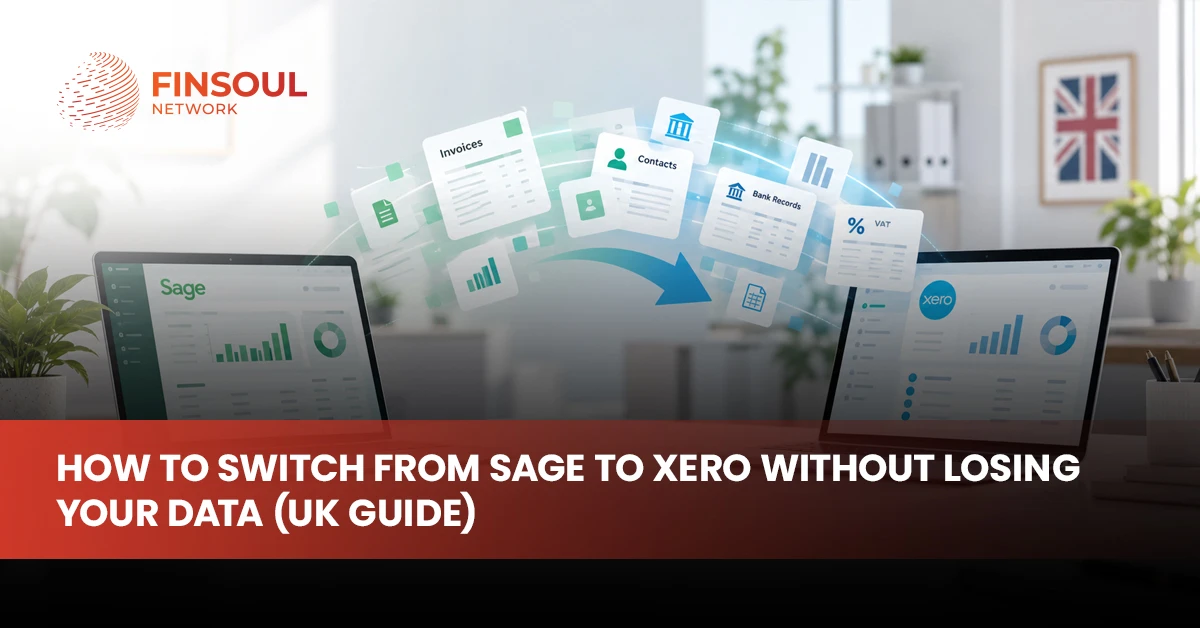
Moving your accounts to new software can feel risky when your business relies on years of invoices, bank records, VAT figures and customer information. Many UK businesses consider Xero for its cloud access and easier collaboration with accountants, but a successful cloud accounting migration requires careful preparation.
If you plan to switch from Sage to Xero, you need to know which records you can transfer, which ones need separate handling and how to check the figures after migration.
Online Accounting Services UK helps businesses plan accounting software changes, review financial records and prepare for a smooth transition.
This guide explains the migration process, UK tax considerations, likely costs and the checks you should complete before you start using Xero for daily bookkeeping.
What Data Can You Transfer from Sage to Xero?
Before choosing a migration method, check which records your current Sage version stores and which records the conversion tool supports. The amount of data you can transfer depends on your Sage product, the migration method and the historical information you want to retain.
Accounting records you can usually transfer
Depending on the conversion tool, you may transfer:
- Chart of accounts: Your nominal codes and account names.
- Customer and supplier records: Contact details, account references and payment terms.
- Sales and purchase transactions: Invoices, bills and credit notes.
- Financial balances: Bank balances, debtors, creditors and general ledger figures.
- Historical transactions: Previous accounting entries, subject to the tool’s supported date range and transfer options.
Records that may need separate handling
Some conversion tools do not transfer every record in the same way. You may need separate arrangements for stock details, project costing, budgets, invoice attachments, draft transactions, payroll information and older supporting documents.
Check the conversion provider’s current list of supported records before you start. If a tool transfers only account balances rather than full transaction history, export the relevant reports and retain access to your original Sage records.
Choose the Right Method to Migrate Sage to Xero
Your accounting records and business requirements should determine the migration method. A small business with straightforward accounts may manage a basic import, while a company with several years of transactions may benefit from a conversion specialist.
Automated conversion
A conversion tool transfers supported records from Sage into Xero. This method can reduce manual entry, although you still need to review the results. Check the supported Sage version, historical date range, transfer limits and treatment of outstanding transactions before purchasing a conversion service.
Manual data import
You can export supported information from Sage into CSV files and import compatible records into Xero. This option may suit businesses that need to transfer selected contacts, account codes or opening balances rather than a large transaction history.
Manual imports require careful field mapping. Incorrect account codes, duplicate contacts and inconsistent date formats can create errors.
Accountant-led migration
An accountant or bookkeeper can help when your business has complicated VAT records, multiple currencies, stock accounts, unusual year-end adjustments or a large volume of historical transactions. Professional support can also help you resolve differences between the two systems.
How does the conversion work for Sage 50?
For a Sage 50 to Xero conversion, start by confirming the exact Sage 50 product and version. Check the conversion provider’s compatibility list, review its transfer limits and ask how it handles historical transactions, outstanding invoices and opening balances.
Do not assume that every Sage 50 feature has a direct equivalent in Xero. List the functions your business uses and confirm how you will handle any records that the selected tool cannot transfer.
Prepare Your Sage Accounts Before Migration
Clean source records make it easier to identify errors after the transfer. Before you begin the migration, review your accounts and save copies of the reports you will use to check the new system.
Back up your accounting records
Create a backup using the correct process for your Sage product. Confirm that you can access the backup and save separate exports of important reports. Keep copies in a secure location with access limited to authorised people.
Export these reports to give you a reliable reference point when you review Xero:
- Trial balance
- Balance sheet
- Profit and loss statement
- Aged receivables
- Aged payables
- Bank reconciliation
Review incomplete transactions
Check for draft invoices, unposted supplier bills, unreconciled bank entries, duplicate contacts and outstanding credit notes. Decide how you will handle each item before the transfer.
Review old customer and supplier balances as well. Investigate long overdue invoices, unused accounts and credit balances that do not match your supporting records.
Build your migration checklist
Use this Xero migration checklist to organise the preparation work:
- Confirm your Sage product and Xero subscription.
- Back up Sage and export key financial reports.
- Review outstanding invoices, bills and bank transactions.
- Record the conversion date and closing balances.
- Confirm the migration tool’s supported data fields.
- Assign responsibility for checking the converted accounts.
Keep a copy of the checklist with your migration records so you can track completed tasks and unresolved issues.
Set the Conversion Date and Check Opening Balances in Xero
Your conversion date determines the point at which your new Xero accounts take over from Sage. Choose a date that fits your reporting schedule and gives you enough time to prepare the records.
Choose a suitable date for the transfer
Many businesses choose a month end, quarter end or financial year end because these dates make it easier to compare reports. You can also move during the financial year if you manage the cut-off correctly.
Before you decide, review your upcoming VAT deadline, payroll schedule, year-end work and outstanding transactions. Avoid rushing the migration just to meet a preferred date.
Enter the closing figures from Sage
The opening figures in your new system should match the closing figures from Sage at the agreed cut-off date. These figures may include:
- Bank accounts
- Customer debts
- Supplier liabilities
- Loans
- Fixed assets
- VAT balances
- Equity
Use your final Sage trial balance to establish the correct figures. If your migration tool transfers historical transactions, confirm how it handles opening balances so you do not enter the same amounts twice.
Reconcile the opening figures
Compare the transferred figures with your Sage reports. Investigate differences in account codes, rounding, outstanding invoices and bank balances before recording new transactions in Xero.
Your accountant can review the opening figures if you have year-end adjustments, complicated tax accounts or unexplained differences.
How to Switch from Sage to Xero Step by Step
Once you have prepared your data and selected the conversion method, follow a controlled sequence. The exact steps depend on your Sage version and the migration tool you choose.
Step 1: Set up your Xero organisation
Create your Xero organisation and enter the correct business details. Check the legal business name, financial year, reporting settings and VAT registration details. Select the appropriate subscription for your business needs.
Step 2: Connect the conversion tool or prepare your files
If you use a conversion service, follow its instructions to connect your Sage data and select the correct Xero organisation. If you use manual imports, prepare your files in the required format and map each field to the correct Xero account.
Check the source and destination accounts before you begin the transfer.
Step 3: Transfer the agreed records
Follow the conversion tool’s instructions to transfer the supported account details, contacts, balances and transactions. If you use manual imports, process the records in the order required by your import method.
Keep a record of the information you transfer and any data that requires separate handling.
Step 4: Review errors and rejected records
Read the conversion report after the transfer. Look for rejected entries, unmatched contacts, incorrect account mappings and transactions that the tool could not process.
Correct the errors and repeat the relevant import if the tool allows it. Record any manual adjustments so your accountant can review them later.
Step 5: Approve the new accounts before going live
Complete the financial checks in the next section before you use Xero for routine bookkeeping. Keep Sage available while you resolve outstanding issues, and agree on a clear cut-off date for new transactions.
Protect Your UK VAT, Payroll and Historical Records
A successful accounting transfer does not automatically move every tax submission, payroll record or supporting document. Review these areas separately before you close your old bookkeeping routine.
Check VAT returns and Making Tax Digital records
Confirm your VAT registration details, accounting scheme, tax rates and VAT control account. Compare the closing VAT balance in Sage with the figure in Xero and review the transactions behind the balance.
Keep copies of submitted VAT returns and their supporting records. If you use Making Tax Digital for VAT, confirm that your Xero setup supports your filing arrangements and that you can access the required digital records.
Some businesses use MTD VAT bridging software to submit figures from spreadsheets or other accounting records. If your current process relies on bridging software, check whether you still need it after the move. Do not assume that changing accounting software automatically transfers HMRC submission history or removes the need for a separate tool.
Handle payroll data separately
Payroll records may require a separate migration process. Check the following:
- Employee details
- Tax codes
- National Insurance information
- Year-to-date pay
- Deductions
- Pension records
- Statutory payment balances
Confirm how your payroll provider handles the move and how you will process the next pay run. Keep access to earlier payroll reports and submissions so you can answer employee queries and tax questions.
Keep older records and supporting documents
Retain invoices, receipts, bank statements, contracts and other documents that the conversion tool does not transfer. Save relevant reports and keep a usable backup of your Sage records.
UK businesses must follow the record retention rules that apply to their tax and legal obligations. HMRC generally requires businesses to keep VAT records for at least six years, subject to specific exceptions. Check the rules that apply to your business before deleting any records.
How to Check Your Accounts Before Going Live
Before you rely on Xero for day-to-day bookkeeping, compare its figures with the reports you saved from Sage. This check helps you find missing entries, duplicate transactions and incorrect balances.
Compare the main financial reports
Review these areas:
- Trial balance: Confirm that the transferred account balances agree with the expected figures.
- Bank accounts: Check opening balances against bank statements and review imported transactions.
- Customer accounts: Compare outstanding invoices, credit notes and total receivables.
- Supplier accounts: Check unpaid bills, supplier credits and total payables.
- VAT control account: Compare the balance and investigate differences in tax treatment.
- Profit and loss and balance sheet: Review material differences and confirm that the new reports reflect the agreed conversion date.
Investigate differences instead of forcing a match
A difference may result from a missing transaction, an incorrect account mapping, a duplicate entry or a timing issue. Check the underlying records and document each correction.
Do not post an unexplained adjustment simply to make the reports agree. Ask your accountant or migration provider to review material discrepancies, especially those that affect tax balances or financial statements.
Once you have resolved the issues, save the final comparison reports with your migration records.
How Much Does It Cost to Switch Accounting Software in the UK?
The cost to change accounting software UK businesses typically face depends on the amount of data, the conversion method and the work needed to prepare your records. A simple transfer may require less support than a migration involving several years of history or complicated accounts.
| Cost item | What affects the cost |
| Xero subscription | The plan and features your business requires |
| Conversion software | The provider, data range and supported Sage version |
| Accountant or bookkeeper | The time needed to prepare, transfer and check records |
| Historical data transfer | The number of transactions and years of records |
| Extra migration work | Payroll, stock, attachments or manual corrections |
Treat any online price as an estimate until you confirm the provider’s terms. Ask for a breakdown of included services, additional charges and the records covered by the conversion.
When should you make the switch?
A month-end or quarter-end may simplify your reporting, but the right date depends on your business. Check your VAT deadlines, payroll dates and year-end commitments before booking the transfer.
If you need to move your accounts during a busy period, allow enough time to check the data and resolve problems before you depend on the new system.
What Should You Do with Sage After the Migration?
Do not remove access to Sage immediately after the move. Keep the original records available until you have checked the converted accounts and confirmed that you can retrieve older information.
Save a restorable backup, relevant reports and supporting documents in a secure location. Restrict access to authorised staff and record the date you stopped using Sage for live bookkeeping.
After the agreed cut-off date, record new transactions in Xero rather than entering them in both systems. This prevents duplicate entries and conflicting balances.
If you need to check an older invoice or explain a previous tax figure, use your archived Sage records and supporting documents. Review your backup arrangements periodically and follow your business’s record retention policy.
Conclusion
A successful accounting migration starts with accurate Sage records, a suitable conversion method and careful checks after the transfer. Review opening balances, confirm VAT and payroll arrangements, and keep your historical records accessible. Take time to investigate discrepancies before relying on Xero for daily bookkeeping or tax reporting.
Online Accounting Services UK can help you prepare your records, review migration results and address accounting issues during the move, giving your business a clearer path to using its new system.
Ready to Switch from Sage to Xero?
Contact Online Accounting Services UK to discuss your current Sage setup, data transfer requirements and accounting checks. Get support with migration planning, opening balances and record reconciliation so you can make the change with a clearer understanding of the work involved.
FAQs
Can I move from Sage to Xero without losing my data?
You can reduce the risk of data loss by backing up Sage, selecting a compatible conversion method and checking the transferred records. Some data may require a separate export or manual transfer, so confirm the tool’s limits before starting.
Can I transfer all my historical Sage transactions?
Not every conversion tool supports the same historical date range or record types. Check the provider’s specifications and ask how it handles older transactions, attachments and archived records.
Can I move from Sage to Xero during the financial year?
Yes. You need a clear conversion date, correct opening balances and a plan for outstanding transactions. Check your VAT reporting and payroll schedules before the transfer.
Will Xero automatically transfer my VAT and payroll history?
Do not assume that it will. Accounting records, payroll information and HMRC filing history can follow separate processes. Check each provider’s requirements and retain the records you need.
Do I need an accountant to manage the migration?
You may handle a straightforward transfer yourself if you understand your records and the conversion method. An accountant can help with complex balances, historical adjustments, VAT differences and reconciliation problems.